Cutover Playbook
Execute a Go-Live Cutover
Summary: This guide walks you through every step of migration night — from T−60 minutes through T+48 hours — so you can cut over cleanly, verify everything works, and roll back safely if needed.
Doc type: How-To Guide | Audience: Deployment Engineer (technical) | Platform: UCaaS admin consoles + CLI + Splunk
Before You Start
Confirm all of the following are true before you set a cutover date. If any box is unchecked, resolve the blocker first — do not schedule the cutover.
- The Pre-Migration Checklist (
checklists/pre-migration-checklist.md) is fully signed by you and your reviewer - The FOC date and time are confirmed in writing from the winning carrier’s porting team (not assumed — called in)
- The compliance stage gate has passed:
python3 execution/compliance_checker.py --migration-id <uuid> --can-advance --stage 5returns exit code 0 - All users have been tested on temporary numbers (not ported numbers) — both inbound and outbound calls confirmed working
- E911 addresses are entered and verified for every site in the platform dashboard (do not leave this for cutover night)
- You have written down — on paper — the carrier porting NOC number, platform NOC number, customer IT number, and your manager’s cell
The Mindset Going Into Cutover
Cutover is not when you figure things out. It is when you execute a plan you’ve already verified. If something in Stage 5 isn’t resolved and cutover is tomorrow, push the cutover. There is no business case for going live on a broken platform.
Recommended cutover window: 2:00am–4:00am local time, Tuesday through Thursday. Avoids Monday/Friday peaks and leaves the full business day for troubleshooting if needed.
Send the Customer Pre-Cutover Email (3 Days Before)
Send this email exactly 3 days before the scheduled go-live date:
Subject: Your phone system migration is scheduled for [DATE] at [TIME]
Here’s what you can expect:
[DATE] at [TIME]: Your phone numbers will move to the new system. This takes approximately 15–30 minutes. During that window, incoming callers may hear a brief interruption.
What your team needs to do: Nothing special. All desk phones will automatically connect to the new system. Softphone users should ensure the app is installed and they’ve logged in before [DATE].
If anything seems wrong: Call or text [YOUR NAME] at [YOUR CELL] — I’ll be monitoring the migration from [START TIME] until all sites confirm working.
Backup: Your old system will remain available as a backup for 48 hours after the move, so we have a safety net.
Questions? Reply here or text me directly.
Cutover Night Runbook
T−60 Minutes: Pre-Flight
Goal: Confirm your environment is clean before the port window opens.
-
Text your customer IT contact now. Confirm they’re awake, available, and their number works.
-
Open the UCaaS Admin Console and navigate to Users. Confirm all users appear with status Active.
Annotated Screenshot“All users should show Active before T−60. Any user showing Offline or Unregistered must be resolved before the port window opens.”
-
Open Splunk. Run:
index=avaya migration_id="<uuid>". Confirm baseline events are flowing in.You should see: Recent log entries from the staging and provisioning phase. If no events appear, check the HEC connection before proceeding (see Troubleshooting doc, Issue 18).
-
Open your
#migrationsSlack channel and post:“Starting cutover for [CUSTOMER NAME] at [TIME]. Migration ID: [UUID]”
-
Confirm the porting tracker status is
foc_received:python3 execution/porting_tracker.py --action status --migration-id <uuid>You should see:
status: foc_receivedin the output. Any other status is a blocker — resolve before proceeding. -
Confirm the old Avaya system is still fully operational and its PSTN trunk is active. Do not touch it.
Emergency contacts — verify now:
Contact Role Phone Customer IT primary On-site during cutover ____________________________Customer executive sponsor Escalation only ____________________________Your manager Escalation ____________________________Winning carrier porting NOC 24/7 porting emergency ____________________________UCaaS platform NOC 24/7 platform support ____________________________
T−30 Minutes: Final Verification
Goal: Confirm the new platform is healthy and the old system is untouched.
-
From the new platform, make an outbound call to your own cell phone. Listen for audio quality.
You should see/hear: Clear audio in both directions, no choppy or robotic quality. If audio is degraded, run
python3 execution/health_check.py --migration-id <uuid>and check MOS score. -
Have someone call a temporary DID (not the ported number) on the new platform. Confirm it rings the correct destination.
-
Confirm the old Avaya PSTN trunk is still live — do not change anything on the Avaya side until T+48h.
At FOC Time: The Port
The carrier ports the numbers at the FOC time. You do not press a button. The number moves in the carrier’s routing tables automatically.
-
Note the exact clock time:
____________ -
Open the Call Logs section in the UCaaS Admin Console.
-
Wait. Do not make configuration changes while propagation happens.
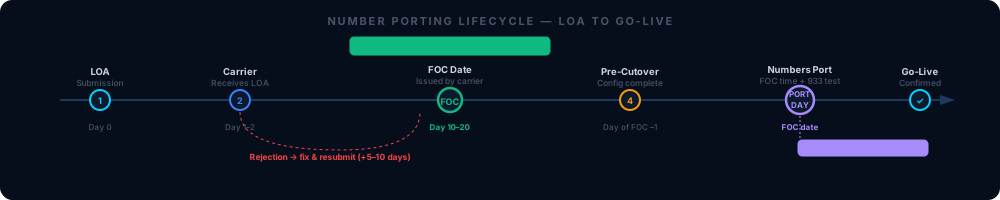
“You’re looking for the first inbound call to appear on the ported number — this confirms the port is live. Allow 5–15 minutes from FOC time.”
You should see: Within 5–15 minutes of the FOC time, an inbound call to the ported number will appear in the call log. If nothing appears after 30 minutes, go to the “Port Didn’t Happen” diagnosis in 07 — Troubleshooting.
T+15 Minutes: First Call Tests
Goal: Confirm inbound and outbound calling work on ported numbers.
-
From an external cell phone (not connected to the customer network), call each ported main number. Time how long it takes to ring.
You should see: The call rings in the UCaaS platform within 3–4 seconds and routes to the correct destination (auto-attendant, user, or hunt group).
-
From the new platform, dial an external cell phone. Confirm the caller ID displayed on the receiving end shows the customer’s main number (not a generic platform number).
-
Leave a voicemail from an outside line. Within 2 minutes, check the user’s email for the voicemail notification.
You should see: An email with an audio attachment from the UCaaS platform’s notification address. If it doesn’t arrive within 5 minutes, check the user’s spam folder. See 07 — Troubleshooting, Issue 10.
-
Call the main number from an outside line and navigate every auto-attendant menu option. Confirm each option routes to the correct destination.
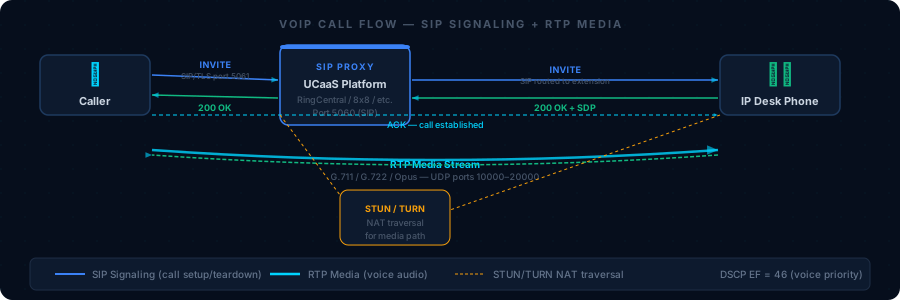
“Test each menu option against your Stage 2 call flow documentation. Any discrepancy must be fixed before T+30.”
T+30 Minutes: Hunt Groups and Feature Verification
Goal: Confirm all configured features work on live ported numbers.
-
Call each hunt group DID from an outside line. Confirm the call rings members in the correct order and overflows correctly when unanswered.
You should see: The call rings the first member, then rolls to the second after the configured timeout (typically 20 seconds), and so on.
-
Test call recording (if applicable): Make a test call. Navigate to Call Recordings in the admin console and confirm the recording appears within 2 minutes.
-
Test paging (if applicable): Page from a desk phone or the paging controller. Confirm audio broadcasts at all configured zones.
-
Test fax (if applicable): Send a test document to/from the fax number. Confirm delivery.
T+60 Minutes: E911 Verification
This step is mandatory. Do not skip it under any circumstances — even if you’re running behind schedule.
E911 is a life-safety requirement. An incorrect emergency address during a real 911 call could direct responders to the wrong building.
-
At each site, pick up a desk phone that is physically located at that site.
-
Dial 933 (the FCC-designated E911 test number — does NOT dispatch emergency services).
You should hear: A recorded message that reads back your registered emergency address. Example: “Your emergency address is: 123 Main Street, Suite 400, Chicago, Illinois.”
-
Confirm the address read back matches the correct physical address of that site — not headquarters, not a billing address.
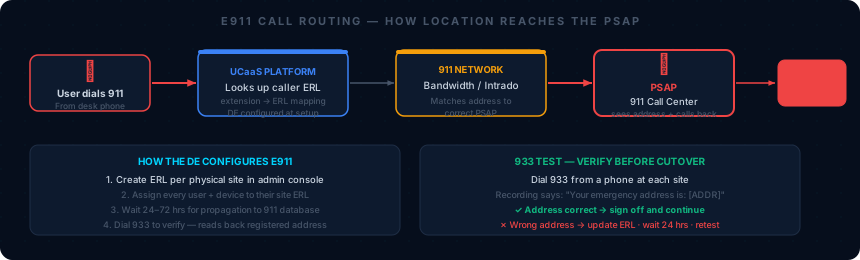
“The address shown here is what 933 reads back and what dispatches to the PSAP. Verify street number, suite, city, state, and zip match the physical site location exactly.”
-
Document each 933 test result in Supabase and in the cutover day checklist.
If E911 is wrong at any site: Update the Emergency Response Location (ERL) in the platform admin console immediately. ERL updates propagate in 24–72 hours — if the address cannot be corrected in time, document the issue and notify your manager. Do not leave incorrect E911 data in place.
T+4 Hours: Health Check
Goal: Confirm the migration is stable and hand off to automated monitoring.
-
Run Splunk error search:
index=avaya migration_id="<uuid>" level=errorYou should see: Zero or near-zero error events. Any errors related to audio quality or registration failures should be investigated now while you can still act.
-
Run the health check script:
python3 execution/health_check.py --migration-id <uuid> \
  --metrics '{"mos":4.1,"jitter":15,"latency":80,"packet_loss":0.1}'
You should see: A health score of 80 or above. Below 60 requires immediate investigation.
-
Update the migration status in Supabase to
"live". -
Update the porting tracker:
python3 execution/porting_tracker.py --action update --migration-id <uuid> --stage port_day -
Post in #migrations:
“[CUSTOMER NAME] is live. All sites confirmed. E911 tested. Migration ID [UUID] ✅“
The Rollback Plan
When to activate rollback — if any of the following are true and cannot be resolved within 2 hours of port time:
- More than 25% of users cannot make or receive calls
- Auto-attendant is completely non-functional (callers get dead air or busy signal)
- E911 is incorrect at any site and cannot be corrected immediately
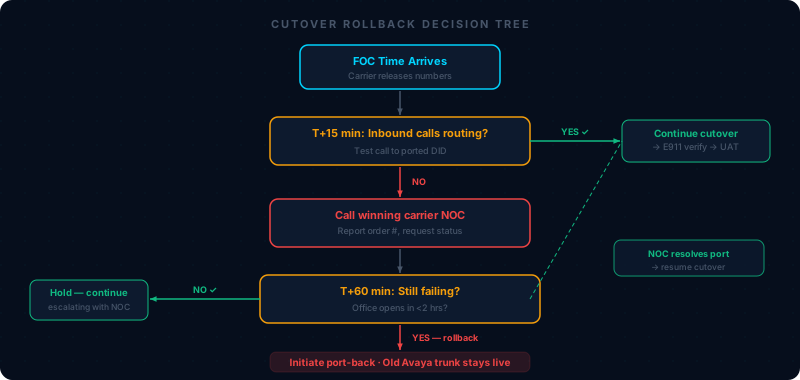
How to roll back:
-
The Avaya PSTN trunk is still live — do not decommission it. Inbound calls to the ported numbers can be reverted to the old system by the carrier.
-
Call the winning carrier’s porting NOC (24/7). Request an emergency port reversal. Have your FOC confirmation number ready.
You should hear: A confirmation that the port-back request has been submitted. The reversal typically completes within 4–24 hours. You have a 48-hour window from port completion.
-
Call your customer IT contact immediately: “We’ve hit an issue and are restoring your old system while we investigate. All calls are working on the old system now. We’ll reschedule once we’ve identified and fixed the issue.”
-
Post in #migrations with full description: what failed, when, what you tried, and that rollback is in progress.
-
Move the HubSpot deal back to Stage 5 (Migration Execution).
-
Debrief within 24 hours: what caused the failure, what changes are needed before the next attempt.
Remember: A rollback executed correctly is success. Pushing through on a broken platform is the failure.
Multi-Site Cutover Strategy
Option A: Simultaneous cutover (preferred for simple topologies) All sites cut over at the same FOC time. Requires all sites to be independently configured and tested before cutover night. Fastest path to full migration.
Option B: Rolling cutover (preferred for complex or large multi-site) Cut over one site at a time, starting with the smallest or lowest-risk site. Lessons from Site 1 inform Sites 2, 3, etc. Numbers must be batched by site on separate porting orders with separate FOC dates. Plan a minimum of 1 week between sites.
T+48 Hours: Closeout
-
Call the customer IT contact before 9am their time: “Did everyone find the new system this morning? Any reports of issues?”
-
Check Splunk for any overnight alerts on this
migration_id. -
After confirming the system is stable — decommission the old PSTN trunk. Confirm with the customer verbally before doing this.
-
Update the porting tracker to complete:
python3 execution/porting_tracker.py --action update --migration-id <uuid> --stage complete -
Update Supabase migration status to
"complete". -
Move the HubSpot deal to Go-Live stage — this triggers n8n workflow 904 (Day 1/7/30/60 automated health checks).
-
Send a brief “you’re officially migrated” email to the customer executive and IT contact.
What to Do If Something Goes Wrong
| Problem | First action | Reference |
|---|---|---|
| Port didn’t happen at FOC time | Call carrier porting NOC immediately | 07 — Troubleshooting, Issue 6 |
| One-way audio after cutover | Check firewall UDP 10000–20000 + disable SIP ALG | 07 — Troubleshooting, Issue 2 |
| E911 address wrong | Update ERL in platform admin console | 07 — Troubleshooting, Issue 15 |
| Calls dropping after 30 seconds | SIP ALG — disable immediately | 07 — Troubleshooting, Issue 3 |
| Health check score below 60 | Run Splunk error search, check MOS | 07 — Troubleshooting, Issue 1 |
Related Articles
- Pre-Migration Checklist — Gate to complete before this playbook applies
- Cutover Day Checklist — Print-and-carry companion to this doc
- 07 — Troubleshooting Guide — Full reference for every issue you may encounter
- 04 — Number Porting — FOC dates, carrier escalation contacts, port-back process
- Knowledge Base: E911 Reference — Platform-specific E911 config and 933 test details
- Post-Migration Checklist — Day 7, Day 30, Day 60 follow-through