Troubleshooting
Fix Common UCaaS Migration Issues
Summary: The 20 issues you will see repeatedly, organized by category, with exact diagnostic steps and fixes for each.
Doc type: Troubleshooting Reference | Audience: Deployment Engineer (technical) | Platform: UCaaS admin consoles, network gear, CLI, Splunk
Before You Diagnose
The diagnostic question that saves you 30 minutes: “Is this affecting everyone or one person?”
- Everyone is affected → suspect network or porting. Check firewall and carrier first.
- One person is affected → suspect endpoint or user configuration. Check that user’s device and profile.
- Affects everyone at one site but not another → suspect that site’s local network or E911 configuration.
Most UCaaS issues fall into five categories: network, porting, platform configuration, endpoint/device, or compliance. Identify the category before you start changing things — a network issue and a configuration issue look identical from the customer’s perspective (“calls sound terrible”) but have completely different fixes.
Network Issues
Issue 1 — Choppy or Robotic Audio
Symptoms: Users report calls sound “choppy,” “breaking up,” or “like a robot.” Usually intermittent, often worse at certain times of day or when the office is busy.
Cause: Jitter, packet loss, or insufficient upload bandwidth — almost always because QoS is not prioritizing voice packets.
Fix:
-
Run a network quality test from inside the customer network during business hours. Use iPerf or PingPlotter targeting the UCaaS platform’s IP ranges.
-
Check jitter. Target: <20ms. If jitter is above 40ms, QoS is not working.
-
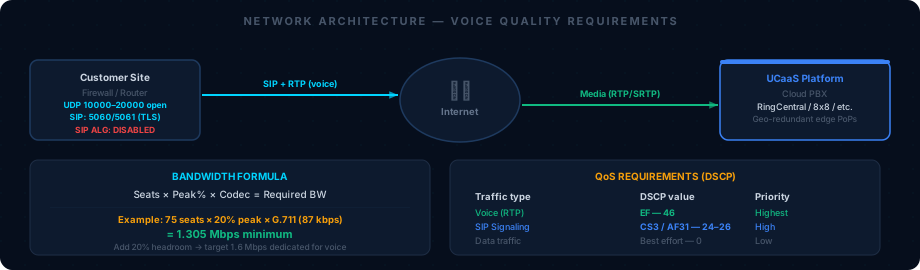
In the router or switch admin panel, confirm DSCP EF (code 46) marking is applied to voice traffic.
“DSCP EF prioritizes voice packets so they’re processed first during network congestion. Without this, voice packets compete with file downloads and video streams.”
-
Confirm SIP ALG is disabled on the firewall. SIP ALG is the cause of approximately 30% of all call quality complaints.
-
Check whether a large file transfer or backup job is running during call hours. Even with QoS, a saturated upload link causes audio problems.
You should see after fixing: MOS score above 4.0 on subsequent health checks. Run
python3 execution/health_check.py --migration-id <uuid>to confirm.
Emergency workaround: Advise users to use the mobile app on LTE while the network is being fixed. Mobile apps bypass the office network entirely and are unaffected by local network issues.
Issue 2 — One-Way Audio
Symptoms: The call connects, but audio only flows one direction — either the caller can hear the user but not vice versa, or the user hears silence.
Cause: NAT traversal failure (STUN/TURN not working) or firewall blocking RTP media ports.
Fix:
-
Confirm the firewall allows UDP 10000–20000 bidirectionally. This is the RTP media port range used by most UCaaS platforms. If only one direction is open, one side’s audio is blocked.
Annotated Screenshot“Both inbound and outbound rules must exist. An outbound-only rule still causes one-way audio.”
-
Disable SIP ALG on the firewall. SIP ALG modifies SIP headers in a way that breaks the NAT traversal negotiation.
-
Test from a device on a completely different network (LTE hotspot). If the call works fine from LTE, the problem is the customer’s local network or firewall — not the platform.
-
Check whether the issue occurs only on external calls or also on internal extension-to-extension calls. If internal calls are also one-way, the issue is in the platform configuration (media proxy settings). If only external calls have the issue, the problem is at the network edge.
You should see after fixing: Audio flows normally in both directions. Test with a colleague — one person talks while the other confirms they can hear, then switch.
Issue 3 — Calls Drop After Exactly 30 Seconds or 1 Minute
Symptoms: Calls connect and sound fine, then disconnect after a fixed interval — exactly 30 seconds or exactly 60 seconds, every time.
Cause: SIP session keepalive problem — almost always SIP ALG or an aggressive firewall UDP session timeout dropping the SIP connection before the keepalive cycle renews it.
Fix:
-
Disable SIP ALG on the firewall. This is the fix in the majority of “exact timeout” drop cases.
-
If SIP ALG is already disabled, check the firewall’s UDP session timeout setting. Many firewalls default to 30 or 60 seconds for UDP sessions, which matches the drop interval.
-
Set the firewall’s UDP session timeout to at least 120 seconds (300+ is recommended for VoIP).
-
UCaaS platforms send SIP OPTIONS keepalive packets every 30–60 seconds to keep the session alive. The firewall must pass these through without resetting the session timer.
You should see after fixing: Calls complete without dropping at the previous timeout interval. Make a test call lasting 5+ minutes to confirm.
Issue 4 — DTMF Not Working (IVR Navigation, Voicemail PIN)
Symptoms: Users press keypad digits, but the receiving system doesn’t respond — voicemail PIN rejected, IVR doesn’t advance, conference bridge doesn’t accept the PIN.
Cause: DTMF transport mode mismatch between sender and receiver. There are three methods (in-band audio, RFC 2833, SIP INFO) and both ends must use the same one.
Fix:
-
Verify the UCaaS platform’s SIP settings are configured for RFC 2833 (RTP-based DTMF) — this is the standard for most platforms.
-
In the platform Admin Console → SIP Settings or Phone System → Devices, confirm the DTMF mode field shows RFC 2833 (not “In-band” or “SIP INFO”).
-
Check whether SIP ALG is enabled — it can strip or mangle DTMF digits. Disable it.
-
If an ATA (analog telephone adapter) is involved (for fax or analog phones), verify the ATA’s DTMF mode matches the platform.
You should see after fixing: The test call navigates the IVR correctly — press 1, hear “You’ve selected option 1.” Voicemail PIN accepted on first entry.
Porting Issues
Issue 5 — LOA Rejected by the Carrier
Symptoms: The winning carrier’s porting team sends back a rejection notice with a reason code.
Common rejection codes and fixes:
| Code | Meaning | Fix |
|---|---|---|
BTN Mismatch | Billing telephone number doesn’t match carrier records | Get the exact BTN from the carrier invoice — not from the customer’s memory |
Name Mismatch | Business name doesn’t match exactly | Use the legal name exactly as it appears on the carrier invoice, including “LLC,” “Inc.,” “Corp.” |
Account Number Incorrect | Account number on LOA is wrong | Get from the most recent carrier invoice — account numbers change when invoices are reissued |
TN Not Found | Phone number isn’t on this account | Number may be on a different account or BTN — customer must call carrier to confirm |
Service Address Mismatch | Address doesn’t exactly match | Call carrier with customer — get the exact format they have on file |
Authorized Signature Missing | LOA not signed | Signature must be from the account owner, not just any employee |
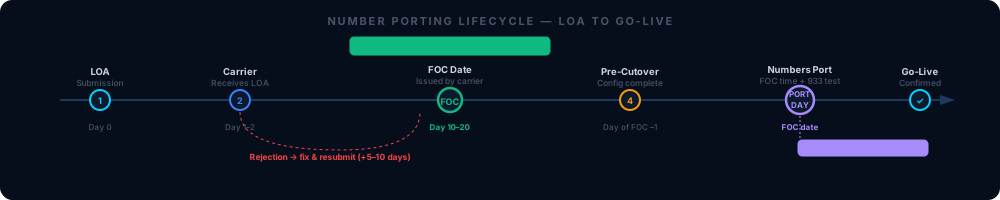
General fix: Call the losing carrier directly — or have the customer call — to verify the exact account information. Correct only the specific field that caused the rejection. Resubmit the LOA. The FOC timeline resets — add 5–10 business days.
Issue 6 — Port Didn’t Happen at FOC Time
Symptoms: The FOC time passes, but inbound calls to the ported numbers still route to the old Avaya system.
Cause: The losing carrier didn’t execute the port at the agreed time, or the porting order has an internal status issue.
Fix:
-
Call the winning carrier’s porting NOC immediately — do not wait until business hours. Have your FOC confirmation number ready.
-
The winning carrier can escalate to the losing carrier for same-day resolution in most cases.
-
Keep the old Avaya system running. Do not change anything while investigating.
-
Notify the customer within 30 minutes of identifying the issue: “We’re investigating a delay with the carrier. Your old phones are still working. We’ll update you within 2 hours.”
“If the current time is more than 30 minutes past the FOC time and calls are still routing to the old system, escalate to the carrier NOC immediately — do not wait.”
You should see after resolution: A confirmation from the carrier NOC that the port is executing. Inbound calls to the ported numbers begin routing to the new platform within 15 minutes of their intervention.
Issue 7 — Partial Port (Some Numbers Ported, Others Didn’t)
Symptoms: The main number works on the new platform, but some DIDs are still routing to the old system.
Cause: The unported numbers are on a different account or BTN at the same carrier and weren’t included in the same port order.
Fix:
-
Identify exactly which numbers haven’t ported. Compare the ported numbers to your complete DID inventory from the Stage 2 assessment.
-
Create a new porting order for the remaining numbers. Submit a fresh LOA covering only the numbers still on the old account.
-
While waiting for the second batch to port (another 10–20 business days), configure call-forwarding from the ported main number to the unported DIDs so callers reach a single point of contact.
You should see after resolution: All ported numbers route correctly to the new platform. Verify with
python3 execution/porting_tracker.py --action status --migration-id <uuid>— all numbers should showport_complete.
Platform Configuration Issues
Issue 8 — Inbound Calls Ring Once Then Go to Voicemail
Symptoms: Callers report the phone rings once or twice and goes to voicemail. Users at their desks say they didn’t hear the phone ring.
Cause: Hunt group ring timeout set too short, or the user’s endpoint is not registered properly.
Fix:
-
In the Admin Console → Phone System → Groups → [Hunt Group Name], check the ring duration per member. Increase to at least 20 seconds per member.
Annotated Screenshot“If the ring time is set to 5 or 10 seconds, the caller hears only one or two rings before being redirected. 20 seconds is the minimum for a user to notice and answer.”
-
In the Admin Console → Users → [User Name] → Devices, confirm the user’s desk phone or softphone shows Registered. An unregistered device can’t receive calls even if the routing is correct.
-
If the phone shows registered but still doesn’t ring: check the DID routing in Phone System → Numbers. Confirm the number routes to the hunt group — not directly to the user’s voicemail.
You should see after fixing: The call rings for the full configured duration before going to voicemail, and the desk phone rings audibly.
Issue 9 — Auto-Attendant Menus Route to Wrong Destination
Symptoms: Pressing 1 routes to the wrong department. After-hours greeting plays during business hours.
Cause: Auto-attendant misconfiguration or the business hours schedule is set to UTC instead of the customer’s local timezone.
Fix:
-
Pull up your Stage 2 call flow documentation. Open the Admin Console → Phone System → Auto-Receptionist → [Attendant Name] → Business Hours Menu. Compare every menu option against the documented call flow one by one.
-
In the auto-attendant configuration, find the Timezone or Business Hours Schedule setting. Confirm it is set to the customer’s local timezone — not UTC.
Annotated Screenshot“Most platforms default to UTC. If the customer is in Chicago (UTC−6), their business hours schedule will be off by 6 hours — causing after-hours routing during normal business hours.”
-
After fixing, call the main number from an outside line and navigate each menu option.
You should see after fixing: Every menu press routes to the destination listed in the Stage 2 call flow document. Business hours routing activates and deactivates at the correct local times.
Issue 10 — Voicemail-to-Email Not Arriving
Symptoms: A user receives a voicemail in the platform but the email notification never arrives.
Fix:
-
In the Admin Console → Users → [User Name] → Voicemail, verify the email address is spelled correctly.
-
Have the user check their spam or junk mail folder — UCaaS voicemail notification emails often trigger spam filters initially, especially for new platform domains.
-
Have the IT admin whitelist the UCaaS platform’s sending domain (e.g.,
notifications@ringcentral.comornoreply@8x8.com) in the email filtering system.You should see after fixing: A test voicemail generates an email within 2 minutes. The email contains the voicemail audio as an attachment.
Issue 11 — Extension-to-Extension Calls Not Working
Symptoms: Users can call external numbers fine but can’t reach each other by dialing an extension.
Fix:
-
For multi-site deployments: In the Admin Console → Sites (or Locations), confirm Inter-site calling is enabled. Some platforms require this to be explicitly turned on for extensions at different physical locations to reach each other.
-
Check for duplicate extensions — two users assigned the same extension number is possible if users were imported via a poorly formatted CSV. Navigate to Admin Console → Users and sort by extension number to check for conflicts.
-
Confirm the dial plan is configured for the correct extension length (3-digit or 4-digit). If extensions are 4 digits but the dial plan only handles 3, the system won’t route the call.
You should see after fixing: Dialing a coworker’s extension from any phone on the system connects the call within 3 seconds.
Endpoint and Device Issues
Issue 12 — Desk Phone Won’t Provision / Shows “Not Registered”
Symptoms: The desk phone powers on but displays “Not Registered,” “No Service,” or “Searching.”
Cause: Autoprovision server URL is misconfigured, MAC address is wrong in the admin console, or a network issue is blocking the phone from reaching the provisioning server.
Fix:
-
In the Admin Console → Devices → [Device Name], verify the MAC address matches the physical sticker on the back of the phone. MAC addresses are case-insensitive and colons are optional —
00:AA:BB:CC:DD:EEand00aabbccddeeare the same. -
Verify the phone can reach the provisioning server URL from the same network segment. On a Poly VVX: press Settings (gear icon) → Status → Network → TCP/IP Parameters — confirm the phone has a valid IP address and correct DNS server.
-
Factory reset the phone. On most Poly VVX phones: hold Menu + OK during boot. The phone will retrieve fresh provisioning settings.
“A phone showing 0.0.0.0 for IP address has a DHCP problem, not a provisioning problem. Check the switch port and DHCP server before continuing.”
-
Confirm the PoE switch port is providing power. Some switches have per-port PoE power limits — if the port is at its limit, the phone may power on partially but behave erratically.
You should see after fixing: The phone displays the user’s name and extension number and shows status as Registered in the Admin Console.
Issue 13 — Avaya Desk Phones Not Working on the New Platform
Symptoms: Customer’s existing Avaya phones (9400 series, 9500 series, J100 series) show “Not Registered” after migration.
Cause: Avaya proprietary phones use Avaya-SIP or H.323 protocols — not standard SIP. They cannot register with RingCentral, 8x8, or any non-Avaya UCaaS platform without custom (and often unsupported) configuration.
Fix: These phones must be replaced with standard SIP phones.
- Budget option: Yealink T31G (~$45/unit) — compatible with all 6 platforms we deploy
- Mid-range: Yealink T46U (~$120/unit) — color screen, Bluetooth, USB
- Premium: Poly VVX 450 (~$180/unit) — 12-line keys, built for busy reception desks
Update the project budget and inform the customer of the hardware cost. This cost must be communicated in the proposal — if it wasn’t, it should have been caught in the Stage 2 assessment.
Prevention: Add “Verify all existing phones are standard SIP (not Avaya proprietary)” as a mandatory item in your Stage 2 assessment checklist.
Issue 14 — Softphone Video Not Working (Webex / 8x8)
Symptoms: Voice calls on the softphone work correctly, but video calls fail to connect or show only audio.
Fix:
-
Check the platform’s published firewall port requirements for video. Most UCaaS platforms require UDP 5004 in addition to the standard RTP range (10000–20000).
-
Confirm the firewall allows outbound UDP on the video port range.
-
Test video from a device on LTE (not the office network). If video works on LTE but not from the office, the firewall is blocking the video ports — not a platform issue.
You should see after fixing: Video calls connect within 3 seconds of the recipient answering, with stable video in both directions.
Compliance and Administrative Issues
Issue 15 — E911 Test Shows Wrong Address
Symptoms: Dialing 933 from a site phone reads back an incorrect address — wrong building, wrong suite, or headquarters address instead of the branch address.
Fix:
-
In the Admin Console → Emergency Services → Locations (or Emergency Calling Settings → Emergency Response Locations), locate the ERL for the affected site.
-
Update the address fields to match the physical location exactly. Use USPS address format — “Ave” vs. “Avenue” can cause a mismatch in the carrier’s 911 database.
-
Save the change. ERL updates propagate to the carrier’s 911 database in 24–72 hours depending on the platform.
-
After the propagation window, re-dial 933 from a phone at that site to confirm the correct address reads back.
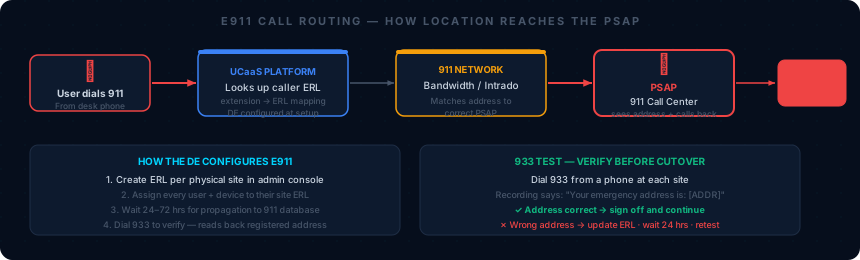
“Every field must match the exact USPS address format. The carrier’s 911 database is strict — mismatches cause the wrong PSAP to receive the call.”
You should see after fixing: 933 reads back the exact address you entered, word for word. If it still shows the old address after 72 hours, contact the platform’s E911 support team to request a manual database refresh.
Issue 16 — Compliance Gate Blocked — Can’t Advance to Stage 5
Symptoms: Running python3 execution/compliance_checker.py --migration-id <uuid> --can-advance --stage 5 returns exit code 2 with a list of blocked requirements.
Fix:
-
Read the blocker output carefully. Each line identifies a specific requirement that hasn’t been completed.
-
Complete the missing requirement. Example: if the blocker is
hipaa_baa_executed, arrange for the HIPAA Business Associate Agreement to be signed by both the customer and the UCaaS provider before proceeding. -
Sign off in Supabase once the requirement is completed:
python3 execution/compliance_checker.py \ --migration-id <uuid> \ --sign-off \ --requirement hipaa_baa_executed \ --signed-by your@email.com -
Re-run the stage gate check. Repeat until exit code 0.
You should see after fixing:
Compliance gate: PASS. Exit code 0.in the checker output. The gate check is also logged to Splunk in theavayaindex.
Do not bypass the gate. The stage gate exists because a compliance failure in production is a regulatory incident — not a technical glitch. See 08 — Compliance Requirements for full sign-off steps.
Issue 17 — n8n Workflow 903 Didn’t Fire
Symptoms: A HubSpot deal was moved to Closed Won but no migration row appeared in Supabase, and no Slack notification appeared in #migrations.
Fix:
-
Navigate to your n8n instance and open Workflow 903 → Executions tab. Look for a failed execution within the last hour.
Annotated Screenshot“The Executions tab shows every run of the workflow and its result. A red row means the workflow ran but failed — click it to see the exact error node and message.”
-
If there’s a failed execution, click it to see the exact error. Common cause: webhook payload schema mismatch — the HubSpot trigger sent data in a format the workflow didn’t expect. Check
directives/migration-workflow.mdfor the required payload structure. -
To re-trigger manually:
curl -X POST https://n8n.cloudmagicgroup.com/webhook/migration-new \ -H "Content-Type: application/json" \ -d '{"hubspot_deal_id":"<id>","customer_name":"<name>","platform":"<platform>","migration_id":"<uuid>"}' -
If n8n is not reachable: check the Surface server is running:
ssh thinkpad "ssh 10.1.50.206 'docker ps | grep n8n'"Also verify the Cloudflare Tunnel is active:
docker ps | grep cloudflaredYou should see after fixing: A new row appears in the Supabase
migrationstable and a Slack notification appears in#migrationswithin 60 seconds of the manual trigger.
Issue 18 — Splunk Showing No Events for a Migration
Symptoms: Filtering Splunk for index=avaya migration_id="<uuid>" returns no results.
Fix:
-
Verify the migration ID is spelled exactly correctly — UUIDs are lowercase and hyphens matter.
-
Confirm the HEC token in the script’s
.envfile is the avaya_hec token (98d595c9) and that it routes to the avaya index. -
Check Splunk is healthy on the ThinkPad:
ssh thinkpad "docker ps | grep splunk"You should see: A running container with uptime of several hours or days. If the container is absent or shows a restart loop, Splunk is down.
-
Verify that the n8n workflow or Python script that should be logging is actually executing — check the n8n Executions tab for that stage of the workflow.
Hardware and Infrastructure Issues
Issue 19 — Customer’s Internet Goes Down During Cutover
Symptoms: During or shortly after cutover, the customer’s office loses internet connectivity. UCaaS calls fail.
Fix:
-
If it’s an ISP outage: UCaaS calls from the office will fail until connectivity is restored. Advise all users to use the mobile app on LTE — mobile apps bypass the office internet entirely.
-
Check whether the customer has a failover DID configured — inbound calls can route to a cell phone or answering service while the office is down.
-
Document the ISP outage in
#migrationsand in Supabase. Update the customer’s disaster recovery plan to include ISP failover options (secondary ISP, LTE backup router).
Issue 20 — Contact Center Queue: Agents Available But Not Receiving Calls
Symptoms: Callers wait in the contact center queue. Agents report they’re available and logged in. No calls are coming through.
Cause: An agent’s presence status is set to unavailable, or the queue routing rule has an unexpected condition blocking distribution.
Fix:
-
In the Contact Center Admin Console → Agents, check every agent’s presence status. A single agent set to Away in a sequential queue can hold up the entire queue depending on the routing strategy.
Annotated Screenshot“In sequential routing, the queue attempts Agent 1 first. If Agent 1 is Away and the queue isn’t set to skip unavailable agents, calls can stack at Agent 1 instead of rolling to Agent 2.”
-
Check the queue’s overflow settings. If the overflow timeout is shorter than the expected wait time, calls may route to voicemail before agents can answer. Extend the overflow timeout.
-
Verify the DID routes to the contact center queue — not a regular hunt group. Check Phone System → Numbers → [DID] → Routing in the admin console.
-
Check for any time-of-day routing rules that may be active unexpectedly — a holiday schedule or override rule can reroute calls away from the queue.
You should see after fixing: Calls distributed to available agents within the configured queue timeout. Check the Queue Reports in the admin console to confirm calls are being answered and not abandoning.
Escalation Path
| Tier | When to use | Contact |
|---|---|---|
| You | Any issue — diagnose first | Your own judgment |
| Platform NOC | Platform configuration not resolving after 30 minutes | Support portal for each platform; 24/7 for enterprise tiers |
| Carrier porting NOC | Any porting issue on cutover night | 24/7 porting escalation line — get this before cutover |
| Senior DE / manager | Can’t resolve within 2 hours on cutover night | Phone/text — making this call is correct behavior |
| Customer executive | Customer service escalation | Loop in the sales team — this is not a technical escalation |
Related Articles
- 06 — Cutover Playbook — Hour-by-hour cutover runbook; references this doc for every issue
- Cutover Day Checklist — The checklist companion to the playbook
- Knowledge Base: Network Requirements — Bandwidth math, QoS config, SIP ALG disable steps by firewall model
- Knowledge Base: E911 Reference — Full E911 config and 933 test steps per platform
- Knowledge Base: Porting Reference — LOA rejection codes, carrier FOC timelines, port-back process
- 08 — Compliance Requirements — Stage gate sign-off steps